Terra · Skyline Blog
How to Connect Your Booking Engine to Claude, Step by Step
Fabián Alvarez7 min read
TL;DR
- Generate a URL in Terra → Integrations and paste it into Claude to connect your booking engine.
- Terra's MCP exposes 11 tools, including listing experiences and creating quickpay bookings.
- First test by listing your experiences to confirm the connection pulls your real catalog.
- Create your first booking by chat with quickpay: one line of text generates a payment link.
- Prices are computed server-side from the catalog, never invented by the AI.
To connect your booking engine to Claude, go to Terra → Integrations, generate your MCP URL, and paste it into Claude's connector settings. Test it first by asking it to list your experiences, then create a booking with quickpay, which returns a payment link from a single chat line.
What do you need before you start?
To connect your booking engine to Claude you need three things: an active account on Terra, Skyline's AI booking engine, access to the Integrations panel inside Terra, and a Claude account (or ChatGPT or Gemini, if you prefer a different assistant). You don't need to know how to code. The whole process is generating a URL in Terra, pasting it into your assistant, and starting to operate by chat.
This tutorial assumes an operator who already has a catalog loaded in Terra: experiences, prices, availability. If you don't have that yet, finish that part first, because the AI assistant depends on your real catalog to work. Think of a coffee tour operator in the Eje Cafetero who already has three experiences published in Terra and wants to stop typing every quote by hand.
If you want to understand what MCP is first and why this bridge between your booking engine and an AI assistant exists, check AI Booking Engine for Tour Operators: Full Guide. Here we go straight to the practical part.
What exactly are you connecting?
Terra connects to Claude, ChatGPT or Gemini via MCP: the operator generates a URL in Terra → Integrations, pastes it into their assistant and operates by chat. MCP is the standard Claude uses to talk to external tools without you having to write any code: you generate a link, paste it, and from then on Claude can read and write into your real operation, not a simulated environment.
This is different from copying and pasting information into a generic chat. When you connect Terra via MCP, Claude can see your updated catalog, your real prices, and create actual bookings, not simulate text that you then have to transfer by hand into your system.
Step by step: how to generate the URL in Terra
Step 1: go to Terra → Integrations
Log into your Terra account and look for the Integrations section in the menu. That's where the MCP connection lives. It's not a hidden or technical setting: it's a button that generates a unique link for your account.
Step 2: generate the connection URL
Inside Integrations, generate your MCP URL. This URL is personal to your Terra account: it points to your catalog, your bookings and your itineraries, not another operator's. Keep it somewhere safe, the way you'd keep a password, because whoever has it can operate your account from their assistant.
Step 3: copy the URL
You only need to copy it once to set it up in Claude. If later you want to use it in ChatGPT or Gemini too, you can reuse the same URL or generate a new one from the same panel, depending on how you organize your integrations.
Step by step: how to paste it into Claude
Step 1: open Claude's connector settings
In Claude, look for the section where you add connectors or MCP servers. That's where you'll paste the URL you copied from Terra.
Step 2: paste the URL and save
Paste the link and confirm. Claude will recognize Terra's MCP server and will expose the available tools inside the conversation. You don't need to restart anything or install additional software: it's a connection that lives in the cloud.
Step 3: verify the tools show up
The MCP exposes 11 tools: list experiences, create quickpay, list/get/create/update itineraries, get recommendations, create package, and list/get/update bookings. If your assistant recognized the connection, you should be able to ask Claude to list them or use them directly in the conversation.
First test: list your experiences
Before trying anything more complex, run the simplest test: ask Claude to list your experiences. Something like "show me the available experiences in my Terra catalog." If the connection is set up correctly, Claude will bring back your real catalog, with your tour names exactly as they're loaded in Terra.
This test does two things. First, it confirms the MCP is actually working and not just that Claude "thinks" it has access. Second, you see with your own eyes that what shows up is your information, not a generic example. If a kayak operator in Guatapé sees Claude return exactly their three routes with the correct names, they know they can trust the next step: creating a real booking from chat.
First booking by chat: use quickpay
Once you've confirmed Claude sees your catalog, the natural next step is to create your first booking without leaving the conversation. This is where quickpay comes in: a booking with a payment link from a single chat line.
In practice, this means you can write to Claude something like "create a booking for two people on Saturday's coffee tour, under Laura's name, with her WhatsApp number," and Claude, using the MCP's quickpay tool, generates the booking and returns a payment link ready to send. You don't have to open Terra, find the tour, fill out a form and generate the link by hand: the conversation with Claude does that work.
One important detail: the prices that appear in that booking are not made up by Claude. Prices are computed server-side from the catalog; the AI cannot make up a price. This means that even though you're operating by chat, the final price your customer sees always comes from what you configured in Terra, not from a language model's estimate. It's a key difference from using a generic rules-based chatbot that only simulates replies: here the AI executes real actions on real data.
Full flow example
Imagine a small agency in Cartagena that gets inquiries through several channels and wants to respond fast without wasting time copying information back and forth. With Terra connected to Claude, the flow looks like this:
- The operator asks Claude to list the experiences available for the weekend.
- Claude brings back the real list from Terra.
- The operator asks Claude to create a booking with quickpay for a specific customer.
- Claude generates the payment link and the operator copies it to send through their usual contact channel.
- The booking gets recorded in Terra like any other, visible in the operations calendar.
All of this happens without the operator having to open the Terra panel even once, although they can always do so if they'd rather check the details there.
What to check if something goes wrong
If you connected the URL and Claude doesn't see your catalog, or the tools don't show up, check these in order:
- The URL is complete. When copying and pasting, it's easy to lose a character at the start or end of the link. Copy it again from Terra → Integrations and paste it once more.
- The URL matches your account. If you manage more than one catalog or shared a test URL, confirm the one you pasted into Claude belongs to the account you want to operate.
- Your catalog has published experiences. If Terra has no experiences loaded, or they're still drafts, Claude won't have anything to list, even if the connection is set up correctly.
- The connector is still active in Claude. Sometimes the connector session drops because of the assistant's platform, not Terra. Check in Claude's settings that the connector still shows as active.
- You tried with a clear instruction. If you ask Claude something vague, it may reply with generic text instead of using the MCP tool. Be direct: "list my experiences in Terra" works better than "tell me about my tours."
If the connection still doesn't work after checking these points, the problem is almost always a badly copied URL or an empty catalog. Those are the two most common cases, and the fastest to fix.
Why operate by chat instead of just using the Terra panel?
The Terra panel is still the place where you see everything calmly: operations calendar, settlements, accounting. The MCP connection doesn't replace that, it complements it. It's useful when you're in the middle of a conversation with a customer, inside your AI assistant, and you need to quote or book without switching screens.
An operator who handles inquiries directly in Claude, because that's also where they manage itineraries or recommendations for other parts of their business, saves time by not having to jump between apps. The difference versus a spreadsheet or a generic CRM without this connection is that here the AI executes the real action, not just logs it for someone else to do later.
What to do now
Log into your Terra account, go to Integrations, generate your URL and paste it into Claude. Run the test of listing your experiences first, and once you confirm it works, create your first booking with quickpay to see the payment link generated in real time.
Frequently asked questions
Do I need to know how to code to connect Terra to Claude?
No. The whole process is generating a URL from the Terra panel and pasting it into Claude's settings. There's no software installation or code involved.
What happens if Claude doesn't see my catalog after connecting the URL?
Check that the URL is complete and matches your account, and that your catalog has published experiences in Terra. If the catalog is empty or in draft, there's nothing for Claude to list even if the connection is set up correctly.
Can I use the same URL in ChatGPT or Gemini besides Claude?
Yes, Terra connects via MCP to Claude, ChatGPT or Gemini. You can reuse the same URL generated in Integrations or create a new one, depending on how you prefer to organize your connections.
Can the prices Claude shows be wrong or made up?
No, because prices are computed by Terra's server from the real catalog, not by the AI. Claude only queries and executes actions on that data, with no ability to invent a value.
What exactly is quickpay?
It's a booking created in a single step that returns a payment link ready to send by chat, from a single instruction given to Claude.
Terra
See Terra in action
The AI booking engine for tour operators: bookings, itineraries, packages and payments, operated by chat via MCP.
Request a Terra demo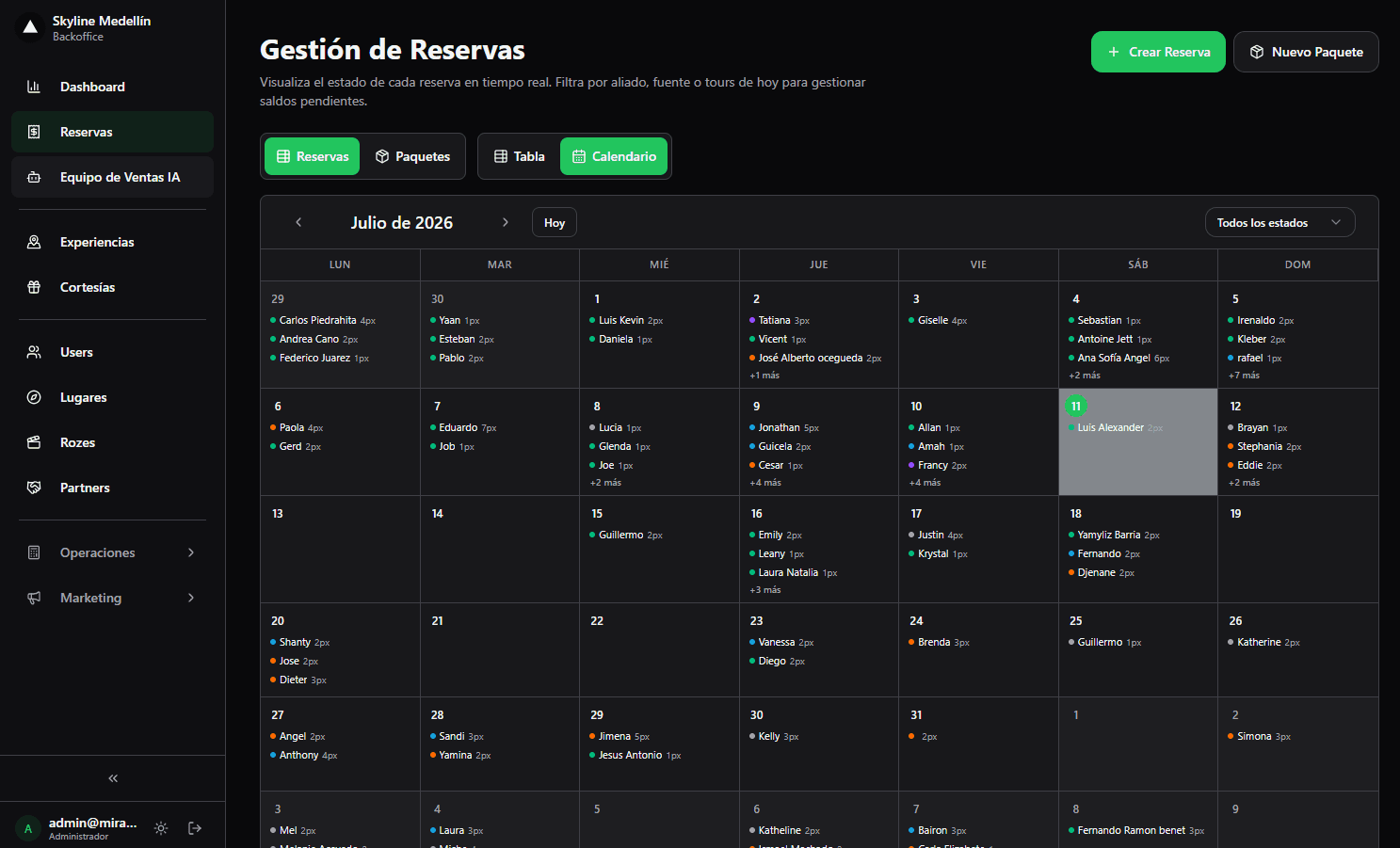
Related · Terra
Software for a Coffee-Tour Operator with Transport Included
Terra charges transfers per vehicle, not per person, airport↔hotel.
ReadDaily Close and Guide Accounts: Step-by-Step Guide
The daily close means knowing what came in, what went out, and what you owe each guide or collaborator.
ReadOrganize Tour Departures and Guides Without a Spreadsheet
An operations calendar joins bookings, guides, departures, travelers and payments into a single row per departure.
Read